TIXNGO External Wallet Configuration
Organizer Settings
To be able to configure External Wallet Integration at Event Level, it must be enabled first in the Organizer Settings (enable.external-wallets) from A.L.E.X.
Once enabled, a new section to host the necessary configuration for External Wallet integration is visible in the External wallets tab of the Edit Event screen (see below).
Event-based configuration
To be able to export an event ticket to Apple or Google Wallet, the external wallet integration must be enabled at Event level.
Another set of platform-based properties are required in order to make the feature available on each platform
Identifier
Parameter | Apple Wallet | Google Wallet | Role |
|---|---|---|---|
Identifier of the Ticket Issuer | Team Identifier | Issuer ID | Identifier of the Apple or Google Wallet Issuer ID. |
Pass Identifier | Pass Type Identifier | Pass Class ID | Map a TIXNGO Event to a specific class in Apple & Google Wallet realm |
Pass Description | Pass Description | N/A | Leveraged by Apple VoiceOver accessibility feature |

Apple Wallet - specific setup
For the new semantics layout of Apple Wallet, as of now, TIXNGO support the Sports event tickets layout
Teams
These information will appear only on the new semantics layout of Apple Wallet
Image assets
Please refer to this Pass image dimensions guideline from Apple, and you can prepare perfect images for your Apple Wallet pass
https://developer.apple.com/design/human-interface-guidelines/wallet#Pass-image-dimensions
The artwork images should be sized 358x448px, knowing that the bottom 118px will be behind the “Footer section” containing the seating details. A plain color for this this area is recommended for better readability.
Where are your provided images mapped to the Apple Pass?
The Strip images will be visible to spectators who added the ticket to the Apple Wallet on a device with an iOS version lower than 18.1
The Artwork images (the background image in the layout below) will be visible to spectators who added the ticket to the Apple Wallet on a device with an iOS version from 18.1 and later
SECUTIX sample assets for the new semantics layout
https://tixngo-public.s3.eu-west-1.amazonaws.com/img/secondary_logo.png

High-quality
https://tixngo-public.s3.eu-west-1.amazonaws.com/img/artwork_valid.png
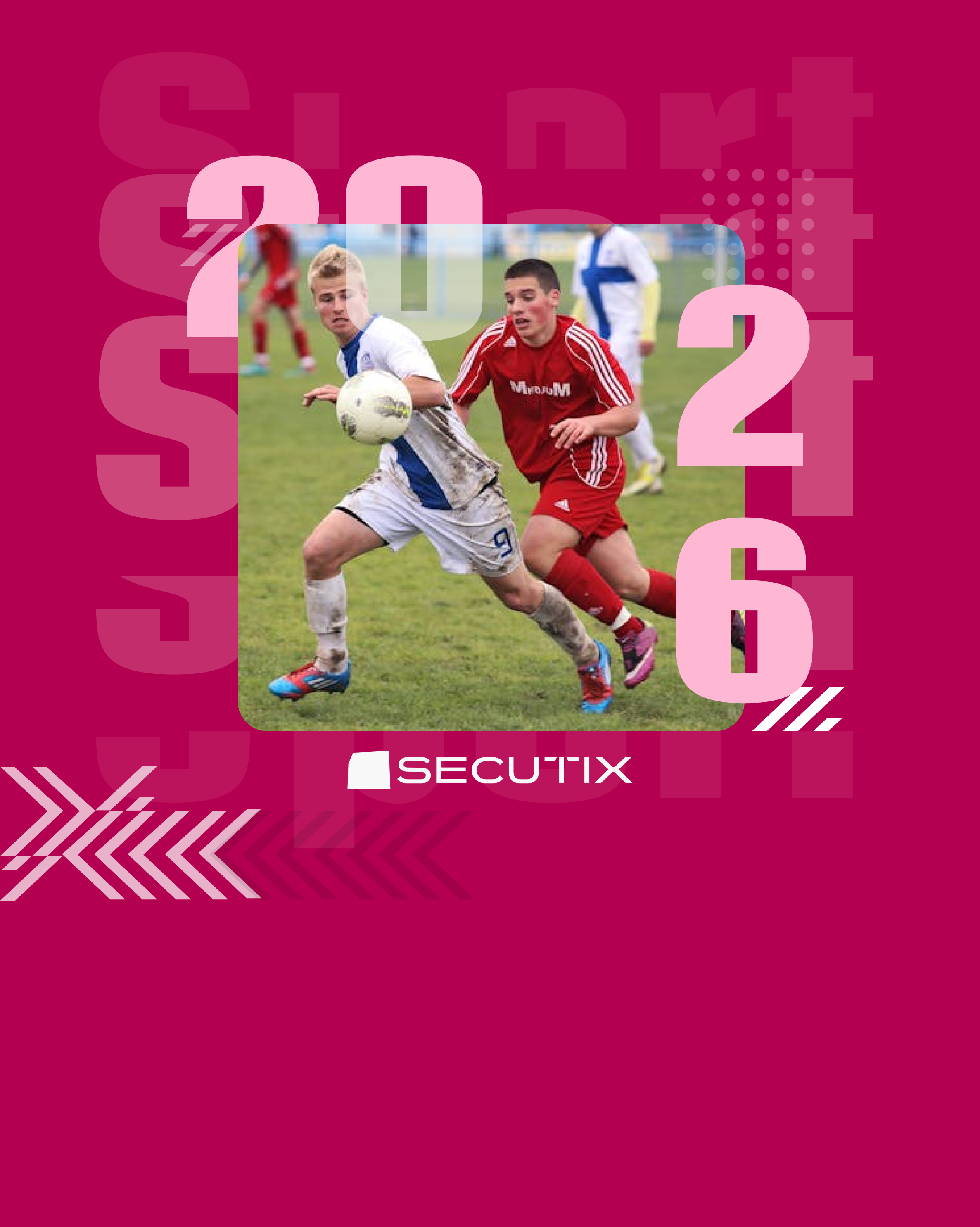
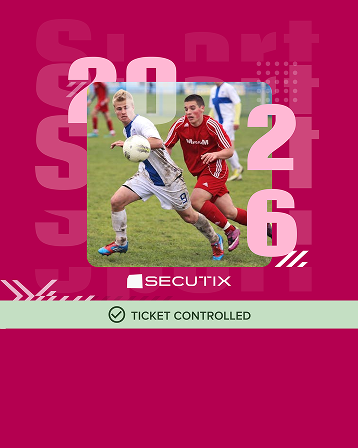
https://tixngo-public.s3.eu-west-1.amazonaws.com/img/artwork_controlled.png
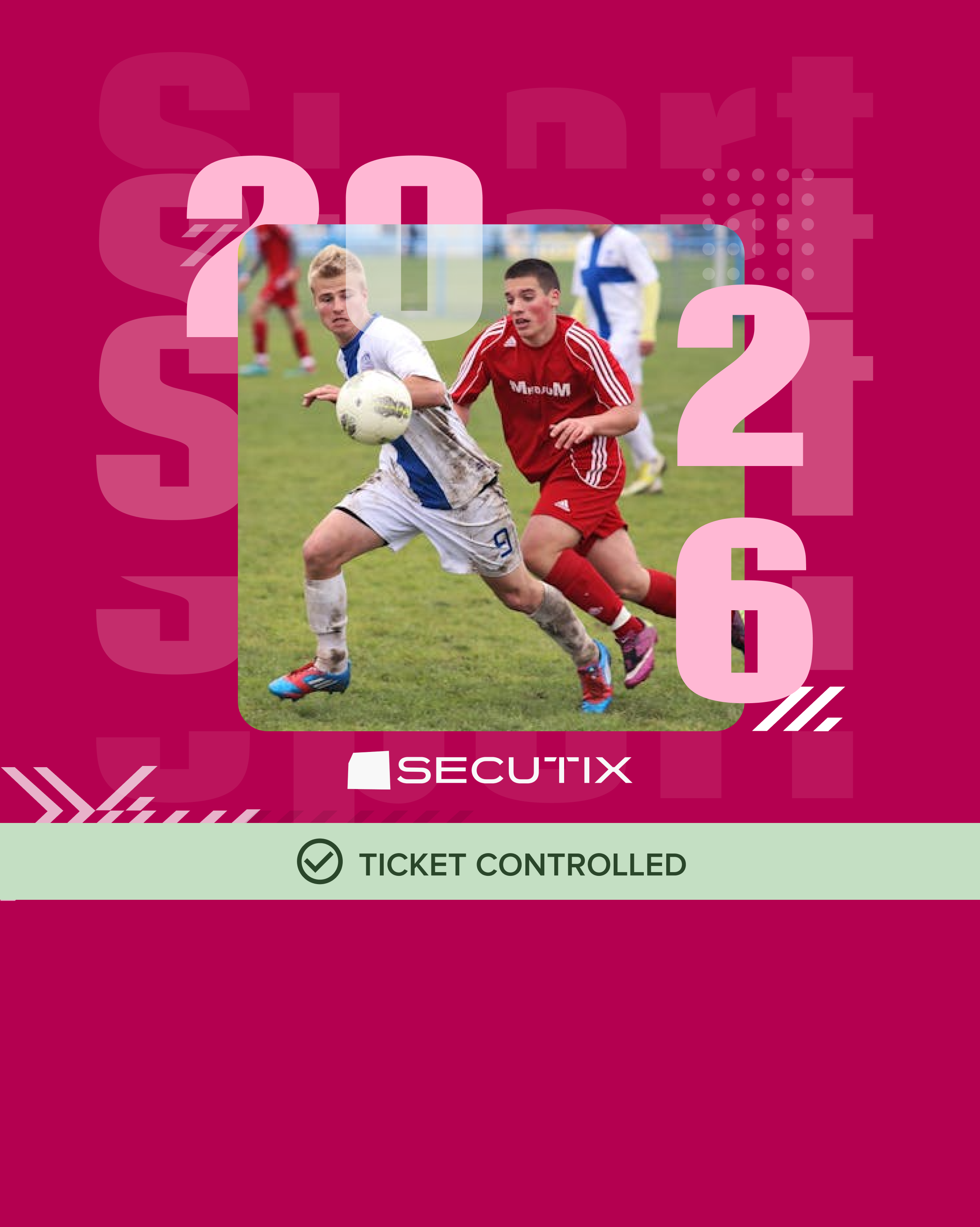
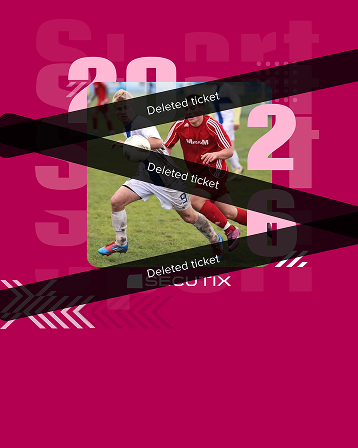
https://tixngo-public.s3.eu-west-1.amazonaws.com/img/artwork_deleted.png
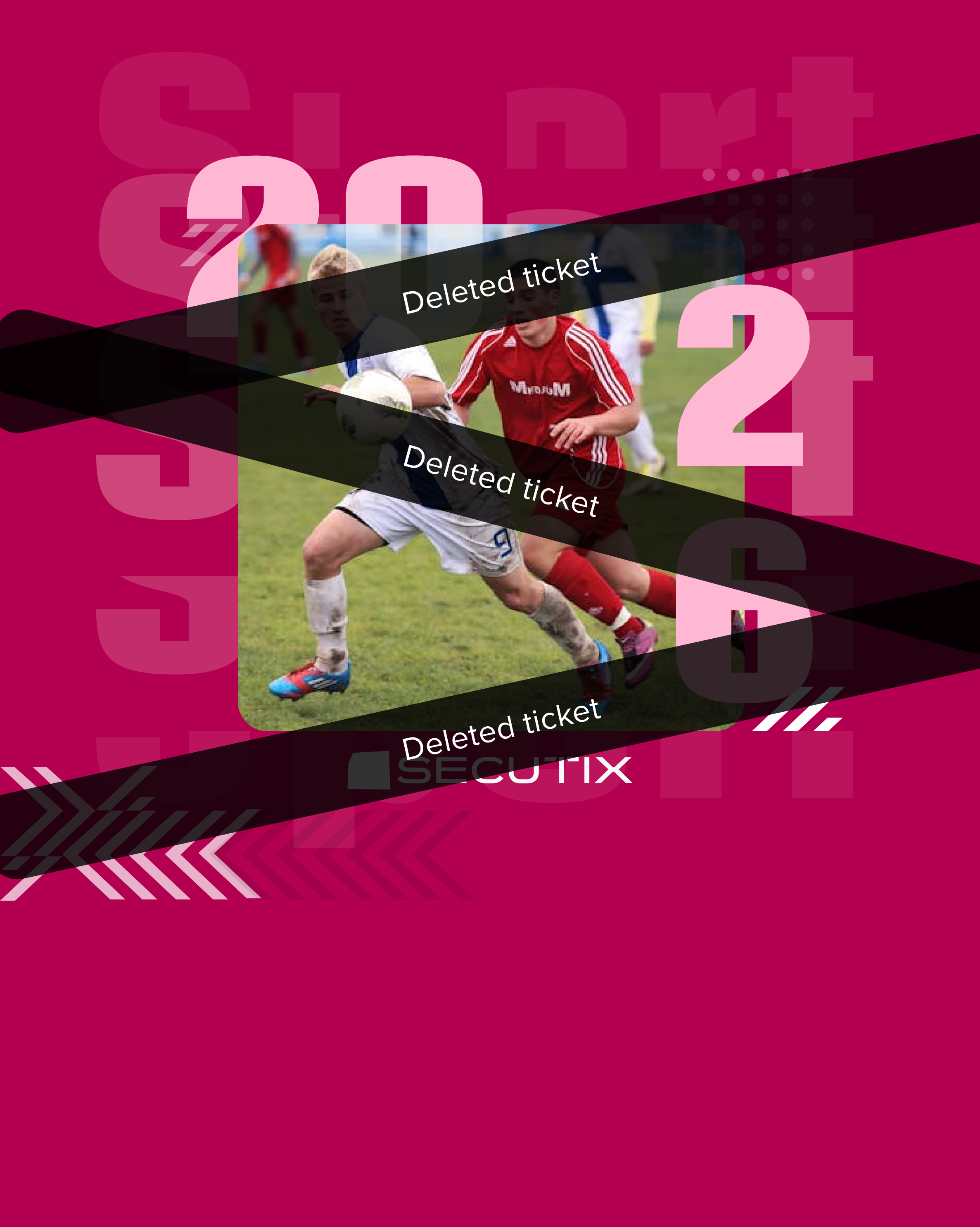
Compact size (358x448 px)
https://tixngo-public.s3.eu-west-1.amazonaws.com/img/artwork_min_valid.png
https://tixngo-public.s3.eu-west-1.amazonaws.com/img/artwork_min_controlled.png
https://tixngo-public.s3.eu-west-1.amazonaws.com/img/artwork_min_deleted.png
Other information
These information will appear only on the new semantics layout of Apple Wallet
Field | Description | |
|---|---|---|
| 1 | Parking information URL | A URL that links to any information you have about parking. |
| 2 | Parking opening time | Time the parking lots open. |
| 3 | Featured playlist IDs | An array of the Apple Music persistent ID for each playlist corresponding to the event, in decreasing order of significance |
| 4 | Long description of entrance information | The long description of the entrance information. This contains whatever string you select such as "Apple gate 5". |
| 5 | Age restriction | This information will be displayed in the “Additional Ticket Info” section of Apple Wallet Pass |
| 6 | Door opening time | Time the doors to the venue open. |
| 7 | Box office opening time | Time when the box office opens. |
| 8 | Fan zone opening time | Time the fan zone opens. |
| 9 | Venue opening time | Time when the venue opens. Use if none of the more specific values above apply. |
| 10 | Venue closing time | Time when the venue closes. |
| 11 | Tailgating allowed | Boolean value indicating that whether tailgating is allowed at the venue. |
Google Wallet - Specific setup
Please access your Google Pay & Wallet Console via this link https://pay.google.com/business/console/
Image assets
Images | Recommend size | Detail |
|---|---|---|
Logos | 660x660 px | https://developers.google.com/wallet/generic/resources/brand-guidelines#logo-image-guidelines |
Hero images | 1032x336 px | https://developers.google.com/wallet/generic/resources/brand-guidelines#hero-image-guidelines |
Update these image URLs in the Google Wallet Pass
You can also review “how it looks” by declaring all its assets and information on this page  Generic pass builder | Google for Developers
Google Maps redirection
To help spectators find the venue more easily. Please go to this page and find your place ID:  Place ID Finder | Maps JavaScript API | Google for Developers
And now, add your venue information to a Google Class Pass
Spectators can open Google Maps from a Ticket in Google Wallet